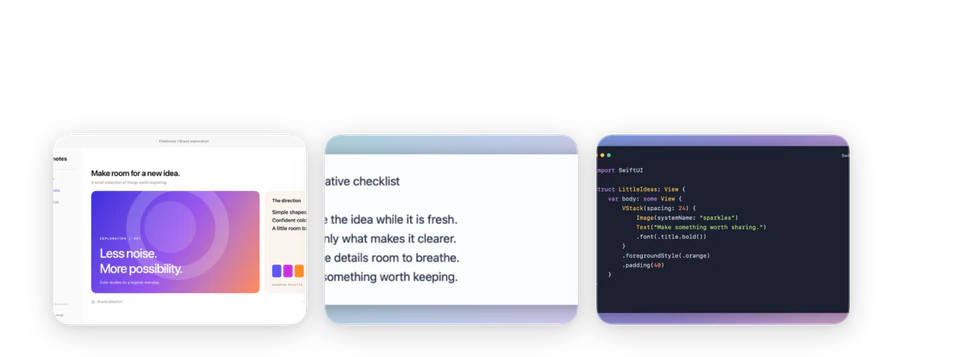
Before you start
- Open SSScreen on macOS 26 or later.
- Use the clearest available image. Small, blurred or low-contrast lettering is harder to recognize.
- Allow screen capture when prompted if you are extracting text directly from the screen.
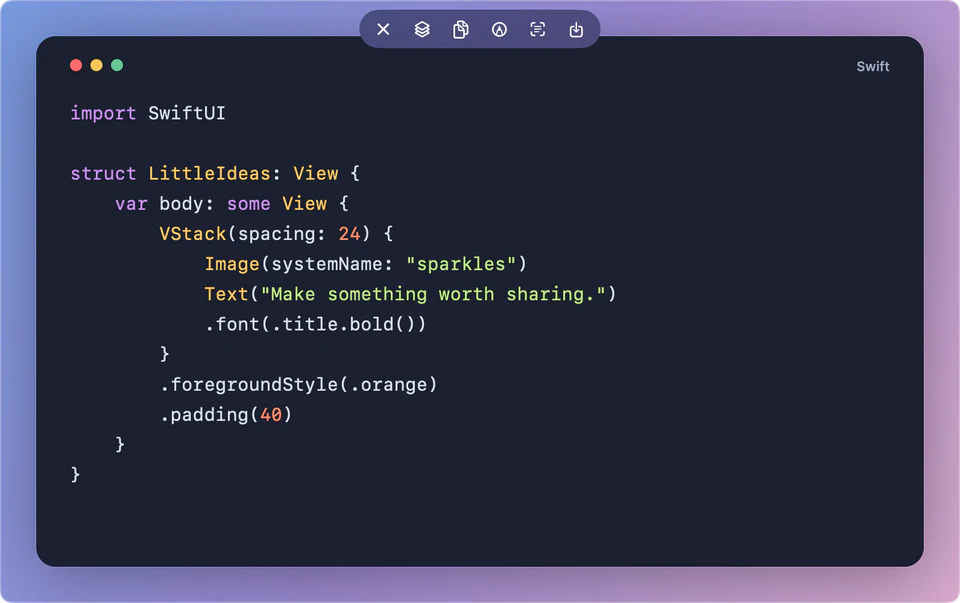
For a quick copy, press Option + 4
Choose Capture Text from the menu or use Option + 4, then drag around the words on screen. After successful recognition, SSScreen places the text on your clipboard. Paste it into your destination app.
This action copies text only. It does not create a screenshot preview or save an image to screenshot history. If no text is found, the app shows feedback rather than copying a successful result.
For precise selection, open a Pin
Pin a screenshot from its preview card, or copy an image and press Control + Option + P. Move over the Pin to reveal the toolbar, then choose Recognize text (the text-viewfinder icon).
Select the words you need
The scan effect shows that recognition has started. Wait for selectable text to appear; the animation ending is not itself a recognition result.
Drag over recognized words or lines, then use Copy or Command + C. While this mode is active, dragging the image selects text instead of moving the Pin.
Copy everything or return to the image
Use Copy all text in the recognition toolbar to copy the full result. Use Exit text recognition or Escape to return to normal Pin interaction. If recognition fails or finds no text, use Retry after checking the source image.
What happens to formatting?
Pin recognition uses Apple VisionKit. Copy all keeps the text and any rich-text information available from the recognition overlay, with plain text as a fallback. Your destination app decides which representation it accepts.
This does not reconstruct an editable spreadsheet, guarantee column order or preserve every visual detail. For code, check punctuation and indentation before using the copied result. The quick Option + 4 path copies plain text arranged in reading order.
If something needs attention
Some words or languages are missing
Recognition uses the languages supported by the macOS recognition frameworks and considers your preferred languages. It does not promise every language or every mixed-script image. Try a clearer original or a tighter capture around the passage, and check the copied text.
Is the screenshot uploaded for recognition?
These recognition paths call Apple Vision and VisionKit locally in the app. SSScreen does not send the image to its own OCR server.