Before you start
- Open SSScreen on macOS 26 or later.
- For a new screenshot, use Area (Option + 1) or Window (Option + 2). For clipboard content, copy the image, text or code first.
Expand your screenshot stack
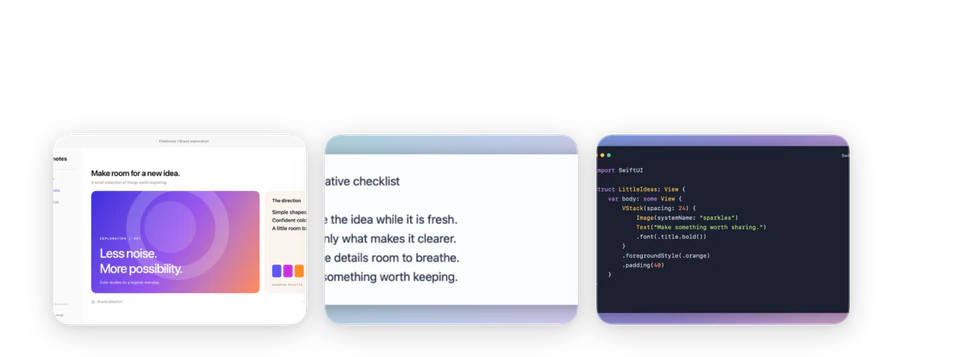
Move over the stack in the lower-left corner to see its cards. Find the image you want and choose Pin on that card. Pinning keeps the card in the stack, so you can still use its other actions later.
Place the reference beside your work
Drag the image area to move the Pin. Its floating window keeps the reference at hand while you work in another app. When text recognition is active, dragging selects text instead; exit recognition before moving the image again.
Copy or annotate it
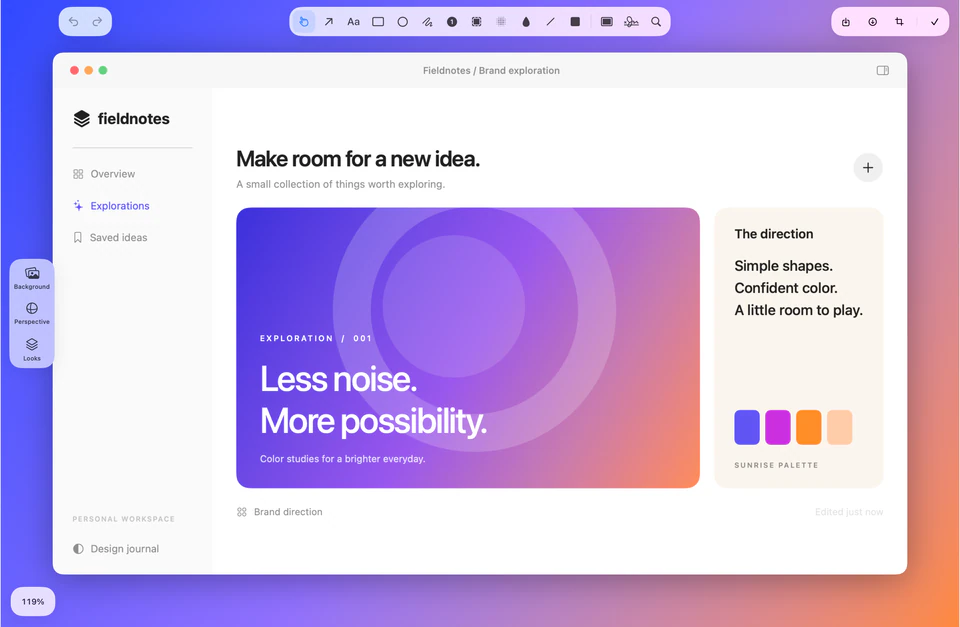
Move over the Pin to reveal its toolbar. Copy Image copies the image; Annotate opens the editor so you can add arrows, labels or change the background.
When you finish editing with Done, the updated image returns to the Pin. Use Save to keep a file rather than relying on an open floating window.
Put it back when you are done
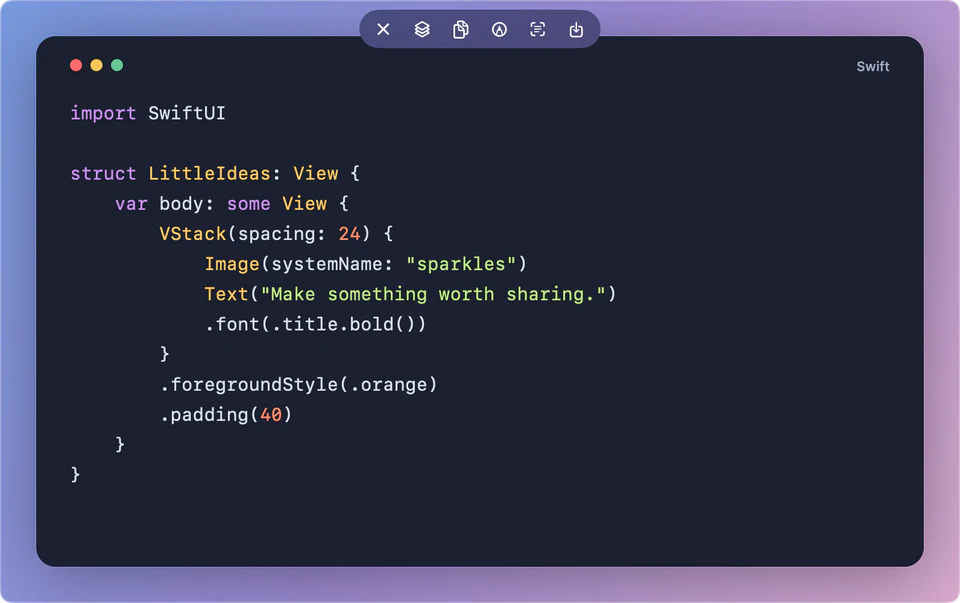
Use Return to stack, the stacked-layers button in the Pin toolbar, to move it back into the corner collection. Close pin dismisses the floating window; Return to stack is the action to choose when you want to keep working with the card.
Start straight from the clipboard
Press Control + Option + P or choose Pin Clipboard from the menu. SSScreen detects the available content automatically.
Images become pins. Text is rendered into an image; detected code receives language-aware highlighting. The result is an image reference, not a live text editor. Video content opens the recording editor instead of becoming a still-image pin.
If something needs attention
Pin Clipboard finds nothing
Copy an image, a supported file, or actual text first. Copying a web address is text input; it does not capture the contents of that web page.
The code is not highlighted as expected
Automatic code detection depends on the snippet. Include enough syntax and context to identify the language. Plain prose or an ambiguous fragment may be rendered as text.