Before you start
- Use macOS 26 or later and open SSScreen.
- Allow Screen & System Audio Recording when prompted. Manual scrolling does not require Accessibility permission.
- Open the content at the point where you want the screenshot to begin. Wait for images and text to finish loading.
Choose Scrolling Capture
Press Option + 5, or choose Scrolling Capture from the SSScreen menu bar menu. These are the default shortcuts; use your customized shortcut if you have changed it.
Select the content inside one window
Drag a rectangle around the scrollable content. Keep it inside a single window and leave out the browser toolbar, stationary sidebars and unrelated panels. A focused selection gives the stitcher clearer overlapping content.
Scroll at your own pace
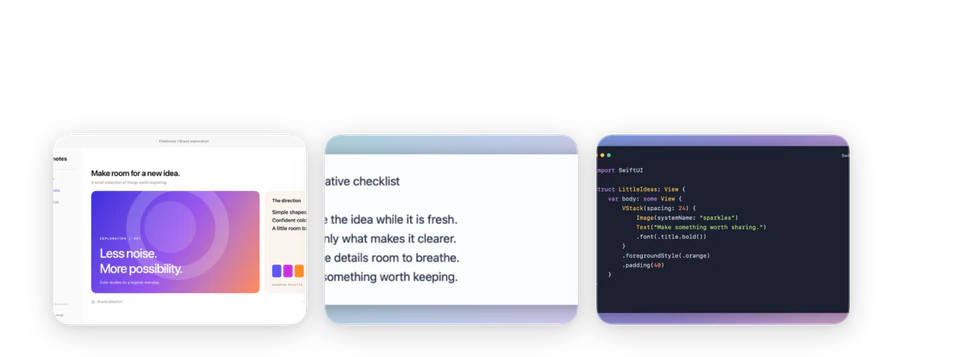
Use the mouse wheel, trackpad or scrollbar in the original app. A floating preview appears beside the selection, on the right when space allows. It follows the newest confirmed content.
Pause whenever you need to: capture stays open. Scrolling back through captured content does not append it again. Continue beyond the previous endpoint to add more. Avoid changing the window size or navigating to a different page during capture.
Finish, then review the image
Click Done in the preview when you have enough content. Capture waits for you to finish, including when you reach the bottom. Press Escape or click the close button to discard the run.
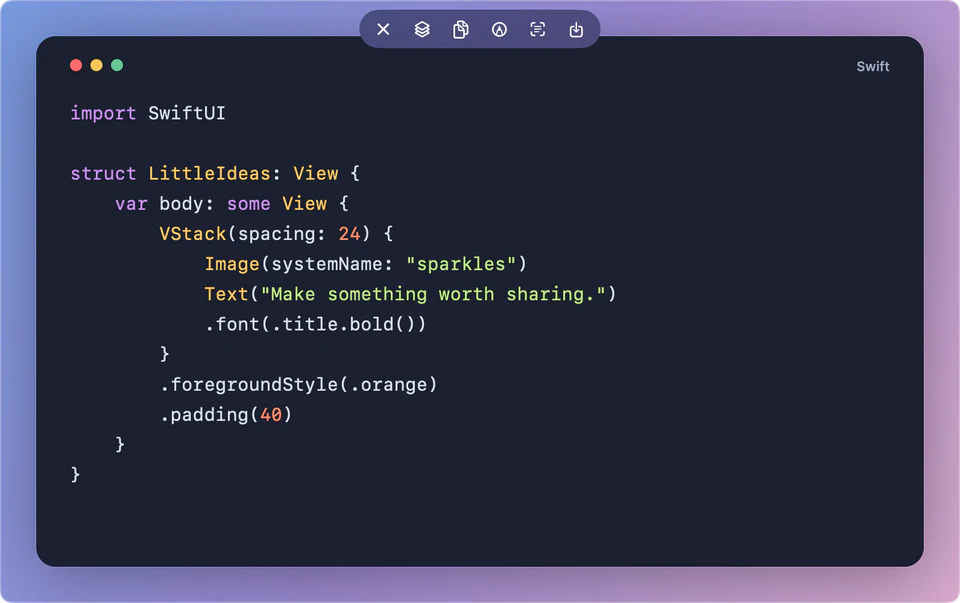
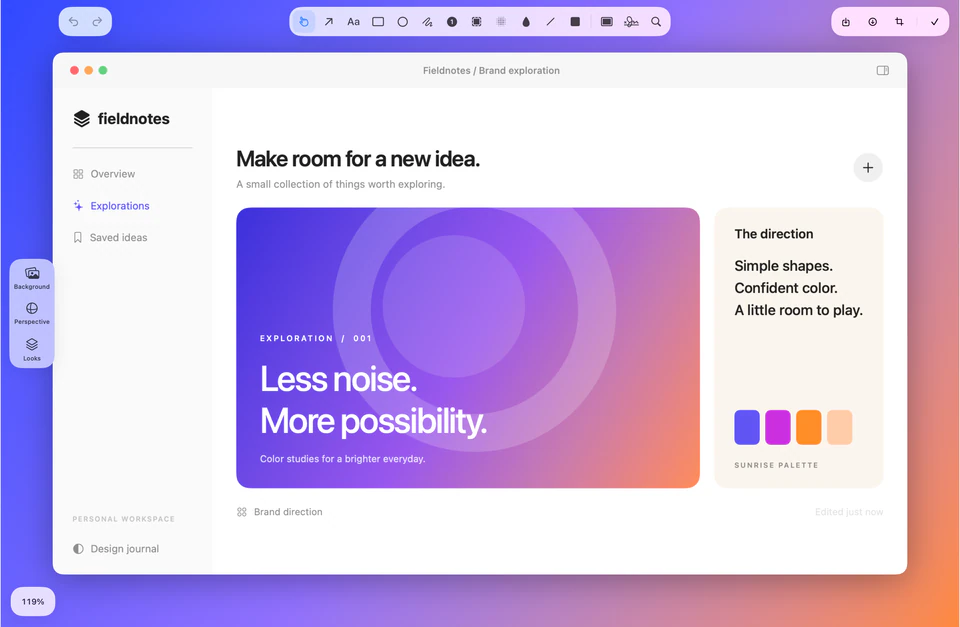
Open the resulting preview to review the joins and text before copying or saving. You can then crop and annotate the image in the editor.
Choose a useful stopping point
An infinite feed has no natural end. You choose the stopping point: use Done when you reach the section you need. For very long material, capture a few meaningful sections so each image stays readable and easier to share.
If something needs attention
The preview stops growing
SSScreen does not scroll the app for you. Place the pointer over the original scrollable content and scroll as you normally would. If you jumped too far for the frames to overlap, scroll back slightly until the preview reconnects, then continue.
Some content is missing or repeated
Wait for delayed images to load, reduce the selection to the main content, and try a shorter section. Sticky elements, live updates, nested scrollers and unusual scrolling behavior can affect stitching. Review the result; manual scrolling does not guarantee that every app or every length will stitch correctly.